You are currently visiting Medline.com on a browser which is not supported. This may reduce the functionality of Medline.com. For the best experience, please switch to a supported browser. For a list of supported browsers
Once you have logged in, you have now arrived at the My Account landing page.
Searching your item history provides you with a comprehensive listing of items ordered within the selected critera. This is a great starting point for creating templates, re-ordering items, and reviewing your total item spend during a specified time period.
From here, select "Search Item History"
2. Select Search Criteria
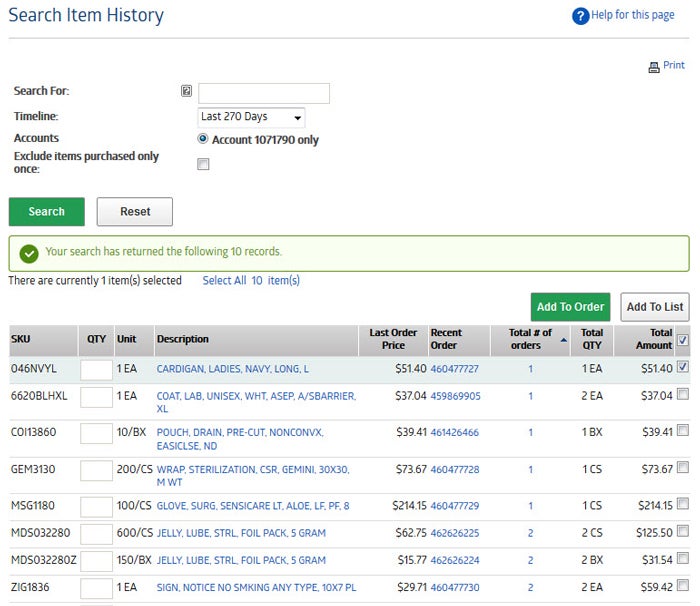
Your results will display for the selected criteria. From here, you can assess item usage, total quantity ordered, total value, etc.
A. (optional) Enter search keyword. For a reminder of which keywords are available to search, hover your mouse over the gray "?" box
B. Choose a timeline from the dropdown, or click "Select Date Range" to create a custom timeline for your search
C. Select the document type you are searching for. The default is to select them all
D. If many locations are available to you, you may click on the blue Select option in the "Search with in selected accounts" which will allow you to choose as many accounts as you wish to pull data for
Once you have entered the criteria you are interested in, click the green "Search" button to perform the search
*NOTE:
Some of the data retrieved has been hidden for privacy purposes. You will receive all of these fields to completeness when performing your own search.
Your results will display for the selected criteria. From here, you can click "View" on a return line to review that return in greater detail.
3. Review Search Item History Results
To quickly add these items to a new order or a Shopping List, enter a quantity in the quantity field, or select the radial button all the way to the right of the line item. The "Add to Order" and "Add to Shopping List" buttons will then turn green for your selection.
Another option to add items to a Shopping List is using the radial button next to the Total Amount to choose all items per page, if your results are more than the page shows, you may choose to use the Select All(B) option which will select all results returned.
*NOTE:
Some of the data retrieved has been hidden for privacy purposes. You will receive all of these fields to completeness when performing your own search.
Some of the data retrieved has been hidden for privacy purposes. You will receive all of these fields to completeness when performing your own search.
Category Id: - Content Id: 56900026
Select Your Area of Interest
Please select your market so that we can provide you customized content: